
WordPress Website Not Updating Changes? Here’s the Fix
🧠 WordPress Website Not Updating Changes? Here’s the Fix
🚨 Problem:
You’re editing your WordPress site, but the changes just don’t show. No matter how many times you hit “Update”, nothing seems to reflect on the frontend.
This issue is common among WordPress users, and in 90% of cases, the root cause is caching—either from your browser, WordPress plugins, or CDN services.
This Yash Host Knowledgebase article will guide you step-by-step on how to resolve WordPress update issues and ensure your changes reflect instantly across your site and to all visitors.
📌 How Long Should It Take for WordPress to Show Changes?
Under normal circumstances, WordPress changes are instant after clicking “Update” or “Publish”. If you’re not seeing updates immediately:
- The issue is likely due to caching.
- You’re probably viewing an older, cached version of the page.
🔍 Why WordPress Changes May Not Show
Here are the main culprits:
🔸 1. Browser Cache
Your browser may serve an outdated version of the page from local memory.
🔸 2. WordPress Page Cache
Your site might be cached via a plugin (like WP Rocket or WP Super Cache), causing old content to be served.
🔸 3. CDN Cache
If you’re using Cloudflare or any CDN, static files might be cached across global servers.
🔸 4. User Role or Content Restrictions
Some dynamic or membership-based content might only be visible to certain roles.
✅ Step-by-Step Fixes: WordPress Not Updating Changes
Follow these steps in the correct order, starting with the most common fix.
🔁 Step 1: Clear Your Browser Cache
🔄 Hard Refresh Your Browser
Try a hard refresh to bypass browser cache:
- Windows:
Ctrl + F5 - Mac:
Cmd + Shift + R
🧹 Fully Clear Cache
Manually clear browser cache via settings:
- Chrome:
Settings > Privacy > Clear Browsing Data - Firefox:
Settings > Privacy & Security > Clear Cache - Safari:
Develop > Empty Caches
💡 Use Cache-Busting File Names
If updating assets like logos or CSS:
- Rename
logo.pngtologo-v2.png - Add query strings:
style.css➜style.css?v=2
This forces browsers to re-fetch the file.
⚙️ Step 2: Clear WordPress Cache
If you’re using caching plugins:
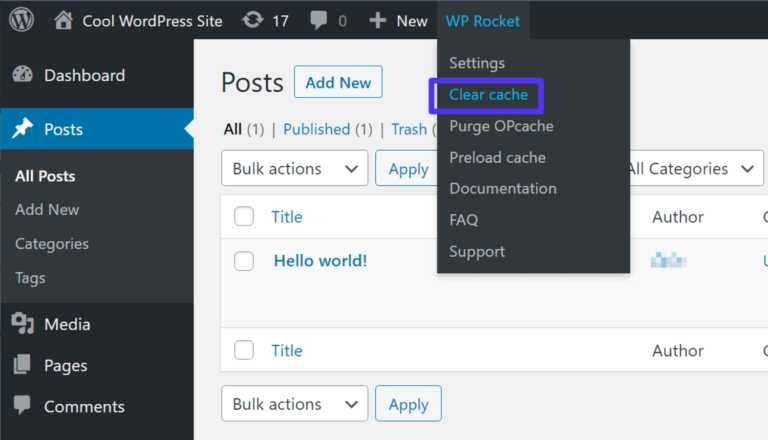
🧩 WP Rocket
- Admin Bar > WP Rocket > Clear Cache
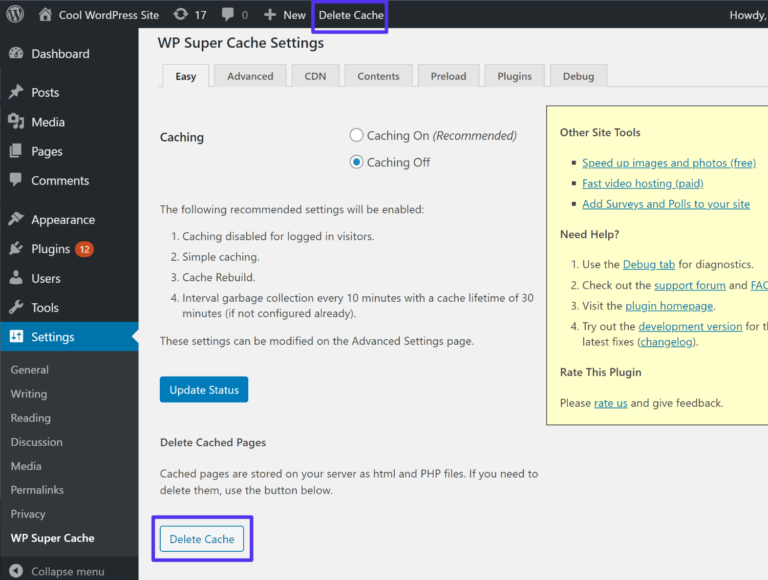
🧩 WP Super Cache
- Admin Bar > Delete Cache
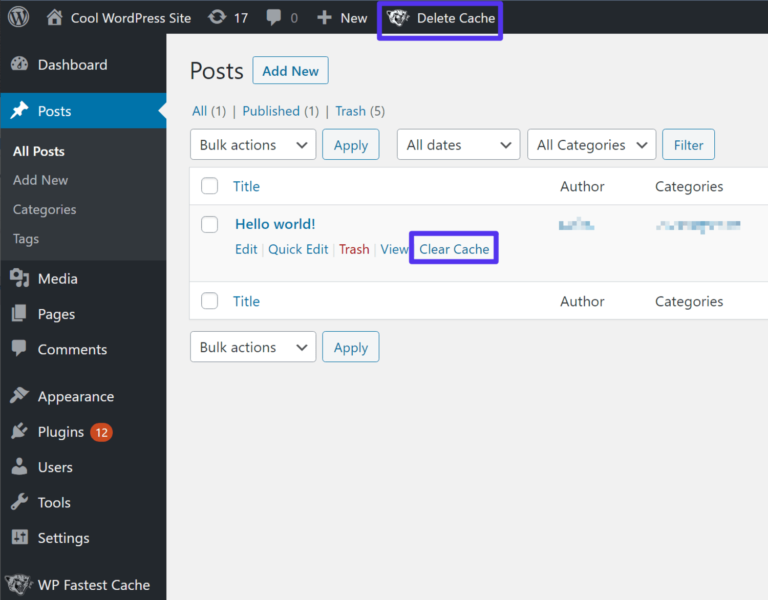
🧩 WP Fastest Cache
- Admin Bar > Delete Cache
- Or go to the individual page/post list and use Clear Cache on the affected item.
🟨 Note: If you’re a Yash Host client using LiteSpeed, purge cache from LiteSpeed > Toolbox > Purge All.
🌐 Step 3: Purge CDN Cache (Cloudflare or others)
If you’re using Cloudflare:
- Login to dashboard
- Go to Caching > Configuration > Purge Everything
This removes outdated cached content from global nodes.
✅ Pro Tip: Enable “Development Mode” in Cloudflare during design/editing phases.
👥 Step 4: Check User Role or Login Restrictions
In dynamic sites or LMS/membership systems:
- Logged-in admins might see changes
- Logged-out users or restricted roles may still see old content
👨💼 Test in Incognito mode or logged out to verify visibility.
🔧 Yash Host Pro Tips
- ✅ Always clear browser + plugin cache after major updates.
- ⏰ During dev mode, set shorter cache expiration times.
- 📦 If using Yash Host CDN or server caching, use your control panel’s “Flush Cache” option or contact support.
💬 FAQs – WordPress Changes Not Showing
❓ Why do changes show when I’m logged in, but not for visitors?
Most caching plugins exclude logged-in admins from caching. Visitors see cached versions unless purged.
❓ I updated my CSS, but nothing changed. Why?
Your stylesheet is cached. Rename the file or add a version query: style.css?v=3.
❓ I’m hosted at Yash Host. Do you have built-in cache?
Yes. Our managed hosting offers LiteSpeed server cache + optional CDN. Clear it via cPanel or request a purge via live chat.
❓ Will frequent cache purging slow down my site?
No, but overdoing it isn’t necessary. Purge when content or code changes, not on every small edit.
🧠 Conclusion
Most WordPress update visibility issues are caused by caching layers. By following the above fixes in order—browser ➜ plugin ➜ CDN—you can quickly resolve the issue and ensure your visitors see the latest version of your site.
For Yash Host users, our platform supports advanced caching configurations, and we’re here to help.